PDFs in the knowledge base: checking text layer, tables and scans before upload
Before uploading to the knowledge base: check whether a PDF has a text layer, what happens to tables and why XICBOT rejects scans instead of guessing.
In plain language
Many firms get new price lists as PDF files at the end of the year. The assistant can only read what is stored as text in a PDF.
A scan is just a picture of the page. XICBOT turns such a PDF down and names the reason.
Prices in tables often get lost. So add key prices as a question with an answer as well.
Before you upload, check that you can mark the text with the mouse. Then ask a few questions in a test chat and see where the answer comes from.
At the end of the year, many businesses receive their documents for 2027: new price lists, catalogues, manufacturer data sheets, revised terms for maintenance or delivery. Most of them arrive as PDF files. For a chat assistant, such a PDF is not a file to download but a source it is meant to answer from. What it can read from it does not depend on how the document looks on screen, but on whether and how the text is stored in it. This article shows what XICBOT does with a PDF on upload, why a scan without a text layer is rejected, what becomes of tables and which short check before upload saves you a second upload.

Labels in the illustration
- Text PDF
- Text layer present
- Read via the text layer
- Numbered sections
- Answer with source
- reference is named
- Table in a PDF
- Text layer, single cells
- Cells in reading order
- Amounts are often
- lost in splitting
- Check in a test chat
- Amounts also as FAQ pair
- Scan, no text layer
- Only an image of the page
- No text found
- Source: not indexed
- Rejected, with reason
- Export from source file
- Before upload
- Text selectable
- on every page
- Table as text
- not as an image
- Title and validity
- inside the document
- One version per file
- remove the old source
- Then: a test chat
- Only what is stored as text in the PDF can carry an answer.
New documents at the turn of the year: mostly as PDF
Between October and January, many businesses replace the documents their customers expect answers from. Manufacturers send new data sheets, wholesalers send new price lists, the company's own catalogue for the coming year goes to print, and terms for maintenance, travel costs or delivery are revised. These documents are usually PDF files, because the format is easy to send, file and print. For the chat assistant on the website, this suggests an obvious shortcut: the new price list is uploaded as a source, and the assistant knows the new details without anyone having to type them in.
The shortcut often works, but not for every file. A PDF can look perfect on screen and still contain not a single readable sentence, for example because it came out of a scanner. A price table can sit neatly in rows in the file and fall apart into single cells when it is read, not all of which arrive. And a list that shows two years side by side gives the assistant two amounts for the same service. Which content belongs in a knowledge base in the first place is described in the article building a knowledge base. This article is about form: what a PDF should look like so that the assistant can answer from it reliably, and how to check this before upload. PDF files that visitors download from your website have requirements of their own, for example on accessibility; they are not the subject of this article, even though some checks overlap.
What happens to a PDF on upload
In XICBOT, a file is added as a file source. PDF files with a text layer, documents in DOCX format and plain text files are read. For a PDF, the intake takes the text from the text layer, that is, from the characters stored as text in the document. The text is then split into sections: first at headings, then at sentence boundaries, for files with a target size of 1400 characters and 200 characters of overlap, as the page on the knowledge base describes it. The overlap is meant to keep a thought at the edge of a section from being cut off. Each section later is the unit that appears in an answer as a reference.
When a visitor asks, the assistant looks up the matching sections. Five excerpts go into the request to the language model, numbered and each with the title of its document, and an answer only counts as backed once the number of a reference appears in it. If no excerpt carries the answer, the assistant usually says that nothing is on file for it. For a PDF, this means: whatever has not arrived as text in a section cannot carry an answer, however clearly it can be seen on the page.
A PDF is read through its existing text layer. If there is none, the intake reports exactly that and returns no text.
| File | What is read | What arrives in the knowledge base |
|---|---|---|
| PDF saved from a word processor, spreadsheet or layout program | the text layer | sections with the running text; amounts and service names from table cells are often missing from the section text |
| PDF from a scanner or as a photo of a page | no text layer present | nothing; the file is rejected with a reason |
| PDF with text pages and some scanned pages | the text layer of the text pages | the text of the text pages; whatever is on the scanned pages is missing without a message of its own |
| Document in DOCX format | the document text, taken apart by rules | sections as with a PDF with a text layer |
| Image file, for example a photographed price board | no readable text | nothing; the intake reports a file without readable text |
The text layer: how to recognise it
A PDF can contain a page in two ways. Either the letters are stored as characters in the document, with font, position and order, or the page is an image on which letters can be seen. On screen, both cases often look the same. The characters are the text layer. It is created when a document is saved as PDF from the program in which it was written or typeset. A scanner or a camera, by contrast, initially produces only an image of the page. Whether a file has a text layer can be checked without special tools in an ordinary PDF viewer.
- Select: In the PDF viewer, drag the mouse across a line of text. If single words can be selected, the page has a text layer. If only the whole page is selected as an area, or nothing at all, it is an image.
- Search: Use the viewer's search function to look for a word that is visible on the page, for example an item number. If the search does not find it, the text layer is missing there, or the word is stored differently from how it looks.
- Copy: Copy the text of a page and paste it into a simple text editor. What appears there roughly matches what the intake reads, in a similar order.
- Every page: Repeat the check on several pages, especially attachments, signature pages and tables at the end. A document can be put together from text pages and scanned pages.
Why a scan is not only a problem for assistants is described by the W3C, which publishes the guidelines for accessible web content, in its technique for scanned PDF documents. Assistive technologies can neither read out nor extract the words of such a document, and users cannot select, edit or enlarge the text. Among others, the technique relates to Success Criterion 1.4.5 (W3C, WCAG 2.2), which deals with images of text. For the check before upload, this is a useful rule of thumb: if a word cannot be selected, XICBOT cannot read it either.
A document that consists of scanned images of text is inherently inaccessible because the content of the document is images, not searchable text.
Tables: what becomes of rows and columns
Price lists and data sheets consist largely of tables. In the text layer of a PDF, however, there is no table in the proper sense, only characters at positions on the page; lines and cell borders are graphics. XICBOT puts the text in order based on where the characters sit on the page. In a table, each cell then often stands on its own: service, unit, amount, next service. With text set in several columns, a table or a box can end up between the columns.
For the sections, this means: the context of a row can no longer be recognised as a row, and short cells often do not survive the splitting. A short line without a punctuation mark at the end, as produced by a service name or an amount, is usually treated as a heading during splitting. If the next such line follows directly, it is dropped, and headings do not go to the language model as text. All that is then often left of a price table in the text of the sections are units such as “per visit”; the amounts are missing. The same details written as complete sentences, on the other hand, usually do arrive. Amounts that have to be exact therefore belong in the knowledge base as a complete sentence or as a question-and-answer pair; a table in a PDF is not a reliable source for them.
| In the document | What can happen when it is read | What helps |
|---|---|---|
| Price table with service, unit and amount | cells appear one below the other; service names and amounts are often missing from the section text altogether | maintain amounts additionally as complete sentences, a question-and-answer pair or a text block |
| Table across several pages | the header row is only on the first page, later rows have no column names | write unit and meaning into every row, for example “per piece, net” |
| Asterisks and footnotes | the note “plus travel costs” ends up far away from the amount it belongs to | put the condition right next to the amount or into a sentence of its own |
| Text in two columns | columns are put together from their position on the page; boxes and tables can end up between the columns | check the order when pasting into a text editor |
| Chart or graphic as an embedded image | the figures are part of the image and are not read | state the values in the text or in a table made of text |
If you maintain a price table additionally as text, write each row as a complete sentence: service, unit, amount, whether net or gross, and from when the amount applies. Such a sentence carries its context with it and remains understandable even when it appears as a single section in an answer. Which further details a price in the chat needs, for example on the total price and shipping costs, is described in the article on prices in the chat.
Scans: rejected rather than guessed
If a PDF yields no text on upload because it consists only of images, the intake stops with an error that has a name of its own. The source then shows as not indexed in the knowledge area, with timestamp and reason, and the notice advises you to store the file again with a text layer or to upload the text as a DOCX or text file. The page on the support assistant says the same: a scan without a text layer is rejected rather than guessed.
Optical character recognition is deliberately left out: text read from a scan is wrong in stretches, and wrong text would be worse here than none.
The reason lies in the way the assistant answers. An answer names its reference. If a 3 had been read as an 8 from a scan, the answer would contain a wrong amount with a reference, and the reference would make it look more credible than it is. A rejected file, on the other hand, is a visible error that can be fixed. The W3C does not treat recognised text as finished either: its technique provides as a test that each converted page is checked for whether the text is complete and in the correct reading order, for example by saving the document as text and reading it through. Nobody performs this page-by-page check when a file is uploaded to the knowledge base.
A rejected file is a fixable error
A scan that is rejected costs one more upload. A misread amount that appears in an answer with a reference costs trust and possibly a conversation with the customer to sort it out. XICBOT therefore prefers taking in no text to taking in wrong text.
The better route: export from the source file
Most price lists, catalogues and data sheets are not created on paper but in a word processor, a spreadsheet, a layout program or as an export from the merchandise management system. If the PDF is saved or exported directly from there, it usually contains a text layer. Scanning mostly happens only once the document has been printed, signed or stamped, or when the source file can no longer be found. In the same technique, the W3C advises using actual text rather than images of text and creating the PDF with the program in which the content was made. The same applies to the knowledge base: exporting from the source file is a shorter route to a text layer than any later conversion.
- Your own documents: save or export them as PDF from the program in which they were created, instead of printing and scanning them again.
- Print data from your agency: ask for a version in which the font is kept as text. For print, fonts are sometimes converted to outlines; such a PDF looks sharp but carries no text layer.
- Manufacturer data sheets and manuals: request the digital version from the manufacturer or wholesaler or download it from their website, instead of scanning a paper copy. How manuals catch follow-up questions after a purchase is described in the article on usage questions after purchase.
- Signed versions: the signed page belongs in your files; for the assistant, the version with the same content from the source file is usually enough.
- Old documents without a source file: enter the details people actually ask about again as a text source or question-and-answer pair. In the chat, questions usually concern a small part of a long document, and typing that part is often quicker than searching for a source file.
Title, validity and one version per file
A section from the middle of a document knows nothing about its first page. If “valid from 1 January 2027” only appears on the cover page, the section with the amount from page seven does not carry this detail. The assistant does receive the title of the document with every excerpt, but not the cover page. For a PDF, XICBOT uses the file name as the title of the document. A name like “scan_0042.pdf” says nothing in an excerpt, whereas “price-list-maintenance-2027.pdf” says which list and which year are meant.
- Title on the first page: what the document is, whom it applies to and who issued it.
- Validity in the text: “valid from” and, if known, “valid until” as text in the document, not only in the file name; for longer lists also in the header or footer of every page.
- Unit with every figure: net or gross, per piece, per hour, per visit, so that a single section remains understandable.
- Headings as text: chapter and product names as typed text, not as a graphic or logo.
- Meaningful file name: content and year in the name, without additions such as “final” or “new”.
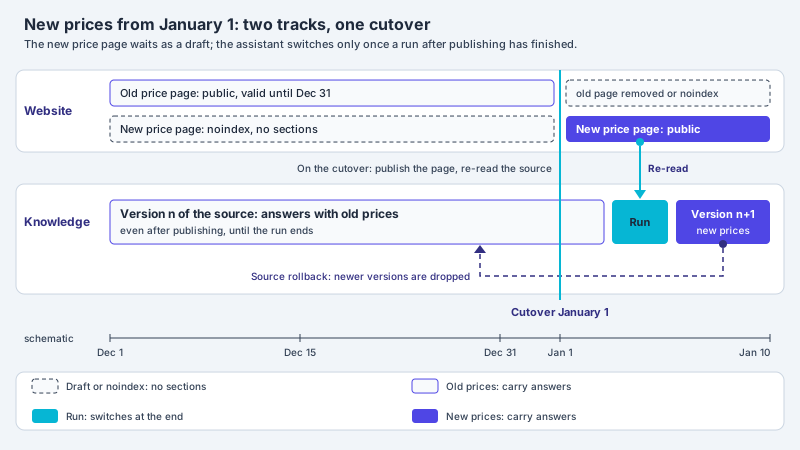
It is just as important that each file contains exactly one valid version and each version is in the collection only once. A list that shows the prices for two years side by side puts two amounts for the same service into the same section; which one is meant then depends on a column heading that can get lost during reading. If the old and the new list are in the collection as two sources, either can end up in an answer. In addition, a file source is not refreshed by itself: it changes when you change it. If you want to set responsibilities and intervals for such changes, the article keeping the knowledge base up to date offers a framework.
After upload: status and test
In the knowledge area, XICBOT shows the status of every source with a timestamp: whether it has been indexed, is outdated or was not indexed, and in case of an error the reason. A rejected scan shows up there as not indexed and not as an empty source that silently runs along. That is the first look after upload. The second concerns the documents of the source: if the PDF appears there as a document, text has arrived. Whether it is the text you expect, and whether it is complete, only the test shows.
You run the test in a test chat. There, the assistant answers questions against the current configuration without any visitor being affected, and shows which sections it used. In addition, the answer probe in the knowledge area shows which source covers a question. Ask questions whose answer you know and that come from different parts of the document: one from the running text, one from a table, one from one of the last pages.
| Test question | Expected | Warning sign |
|---|---|---|
| What does maintenance of device A cost? | the amount from the new list with its unit, reference from this list | no amount, the amount of a neighbouring row or a reference from the old list |
| What are the dimensions of model B? | the values from the data sheet of model B | values of another model from the same table |
| From when does the new price list apply? | the date from the document | “nothing is on file for this”, although the date is on the cover page |
| A question about a detail from one of the last pages | an answer with a reference from that page | no answer; the page may be a scan |
The test becomes repeatable with test questions and model answers, as is usual for acceptance before go-live; the article on test cases before go-live describes the approach. For prices and deadlines, XICBOT additionally holds hard details against the excerpt material after the language model. This second check against the source detects a detail that appears in no excerpt, but not an amount that is already wrong in the source or was misread. Against a poorly readable file, therefore, usually only a better file helps, or the detail entered as text or as a question-and-answer pair.
The checklist before upload
- Text selectable: single words selectable on every page and findable via search.
- Plausible order: a copied page gives readable sentences in a sensible order in the text editor.
- Tables as text: tables consist of typed text, not of an inserted image; important amounts are also written as a complete sentence or in a question-and-answer pair.
- Title and validity: in the document itself, for long lists also in the header or footer.
- Units with the figures: net or gross, per piece or per hour, right next to the amount.
- One version per file: no two years side by side, no extra copy as a draft.
- File size: the knowledge base accepts files up to 10240 KB (knowledge base page); split larger catalogues into chapters.
- Meaningful file name: content and year in the name.
- After upload: look at the status of the source, delete the old version and ask three or four questions in a test chat.
What XICBOT handles and what stays with you
-
Reading the text layer
PDF files with a text layer, DOCX documents and text files are taken in and split into overlapping sections from which answers with a source reference are built.
-
Rejecting scans
A PDF without a text layer is rejected with a named reason instead of guessing text; optical character recognition is deliberately left out.
-
Status per source
Every source shows its status with a timestamp in the knowledge area, one that was not indexed also the reason.
-
Testing before use
In a test chat you see which sections carry an answer before a visitor asks the same question.
What stays with you is what no software can decide for you: which version applies, whether a detail belongs in a file or in a question-and-answer pair, and whether an answer suits your business. If we look after your assistant, we review your documents in advance and tell you which files carry text and which should be replaced. What the knowledge base reads overall and how it keeps sources up to date is described on the page on the knowledge base.
Frequent questions
How can I tell whether my PDF has a text layer?
The easiest way is in the PDF viewer: if single words can be selected and the search function finds a word that is on the page, a text layer is usually present. Check this on several pages, because a document can mix text pages and scanned pages.
What happens if I upload a scan?
XICBOT rejects a PDF without a text layer with a named reason. The source appears as not indexed in the knowledge area, with a timestamp and a notice on how to continue: store the file again with a text layer, or upload the text as a DOCX or text file.
Why does XICBOT not read the text of a scan itself?
Because text read from a scan can be wrong in stretches and an answer names its reference. A misread amount with a reference usually weighs more heavily than a rejected file. The better route is usually an export from the source file.
Are tables from a PDF read correctly?
Do not rely on it. Cells are read one by one, and short table cells such as amounts are often lost when the text is split into sections. Amounts that have to be exact are therefore best maintained additionally as complete sentences or as a question-and-answer pair and checked in a test chat.
Can I upload the old and the new price list at the same time?
It is possible, but usually not advisable. If both are in the collection as sources, either can end up in an answer. One version per file and a planned change on the cutover date, at which the old source is deleted, make more sense.
How large may a file be?
The knowledge base accepts files up to 10240 KB (knowledge base page). Large catalogues can be split into chapters; this also keeps the titles of the individual documents meaningful and makes the check in a test chat easier to manage.
Ask it yourself, Assistant of this website
Automated assistant